When a teacher is absent, see who is free in every period, spot same-subject cover and email the substitute in one click. Step-by-step guide + FAQs.
Written by Muhammad Huzaifa, Founder of Academic Scheduler · Updated October 2026 · Insights from 350+ school onboardings
Teacher absences no longer need to disrupt the flow of your school’s schedule. With Academic Scheduler, you can see in seconds which teachers are free to cover each lesson, pick a substitute, and email them the details, so classes keep running smoothly.
How do you schedule a substitute teacher quickly?
Open Substitutions, select the absent teacher and the day (or press Today). Academic Scheduler lists every class that teacher was due to take, period by period, and for each one shows the teachers who are not teaching anywhere else at that time. Pick a substitute, preferably one who teaches the same subject, and click Email to notify them.
The problem: the 7:45 a.m. scramble
Every school knows the morning phone call: a teacher is ill and has six lessons today. Someone, usually the vice principal or timetable coordinator, now has to work out which classes are affected, who is free in each of those periods, and who is best suited to step in. Done by hand, that means checking the absent teacher's timetable, then cross-checking every other teacher's timetable for each period. In our onboarding calls, schools describe this as the most stressful fifteen minutes of their day, and it often ends with the same few teachers covering again and again.
The information needed to solve it already exists in your timetable. Substitution management simply puts it in front of you at the moment you need it.
Key Benefits
- ✅ Quickly find substitute teachers: for every period the absent teacher had, see the teachers who are free at that exact time.
- 🎯 Best match highlighted: free teachers who teach the same subject are highlighted, and each teacher's subjects are shown, so you can keep the lesson on track.
- 📧 One-click email: send the substitute an email with the class, subject, day and period (with times).
- 📅 Built on your real timetable: availability comes from the live timetable, so you never assign someone who is already teaching.
- 💡 Save time on manual coordination: no more cross-checking printed sheets period by period.
Step by step: arranging cover in Academic Scheduler
- Open Substitution from the main menu.
- Select the absent teacher in the Select Teacher box (you can type to search by name).
- Choose the day from Select Day, or press Today.
- Review the cards. The page shows “Substitution Schedule for [teacher] on [day]” and how many classes were found. Each card shows the period number and time, the class and section, and the subject.
- Pick a substitute. Under Substitutes, every free teacher is listed with their subjects. Teachers who teach the same subject stand out. If a card says “No substitutes available”, every teacher is busy in that period, so you will need another arrangement (for example, combining classes).
- Send the email. Click Email next to the chosen teacher. They receive the class, subject, day and period. The button only appears for teachers who have an email address saved, so add emails on the Teachers page beforehand.
Tips for fairer, faster substitutions
- Add every teacher's email now, not on the morning you need it.
- Prefer same-subject cover when the class has an assessment or is mid-topic; any free teacher is fine for a supervised study period.
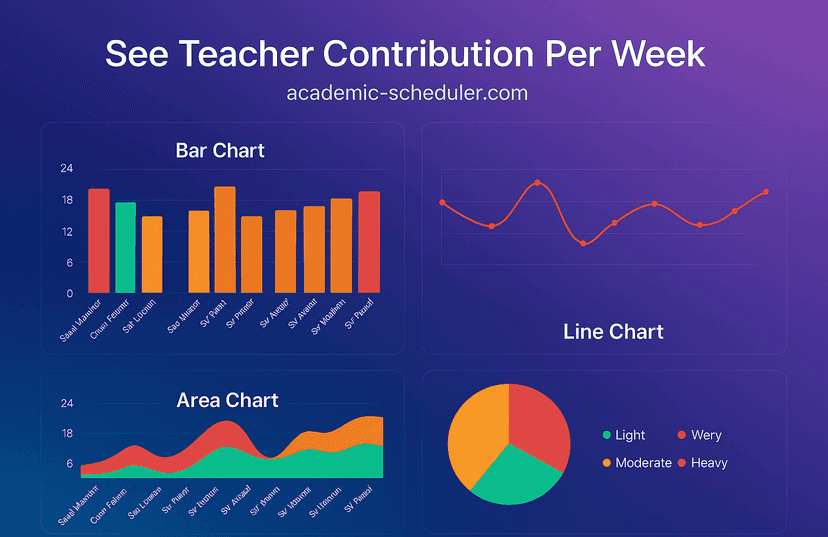
- Spread the load. Keep a simple record of who covered which lesson and rotate. Our teacher workload view shows who already has the heaviest week.
- Check the whole day in the teacher-wise Daily Timetable if several teachers are absent at once.
- Plan known absences ahead. Training days and leave are known in advance; arrange cover the day before and email it then.
Substitution management works alongside the rest of the timetable: conflict-free building (see timetable conflict detection) means the free-teacher list is reliable, and if you are moving from a desktop tool, our aSc TimeTables alternative guide explains how the cloud approach differs.
Related: see substitution management.
Frequently Asked Questions
What is substitute teacher scheduling?
It is the process of finding a free, suitable teacher to cover each lesson of an absent colleague and letting them know. Software speeds it up by reading the timetable and listing who is free in each period.
How does Academic Scheduler decide who can substitute?
For each period the absent teacher had, it lists every other teacher who has no lesson scheduled in that period on that day. Teachers who teach the same subject are highlighted.
Can the substitute teacher be notified automatically?
You choose the substitute, then one click on Email sends them the class, subject, day and period. The teacher needs an email address saved in their profile.
Does assigning a substitute change the main timetable?
No. Substitution is for day-to-day cover, so your regular weekly timetable stays exactly as it is. If a change is permanent, edit the timetable itself in Schedules.
What if no teacher is free in a period?
The card shows “No substitutes available”. That means every teacher is teaching at that time, so the school needs another arrangement, such as combining two sections or supervised study.
Can I arrange cover for a teacher who is absent today?
Yes. Choose the teacher and press Today to see who is free in each of their periods straight away.
Ensure uninterrupted learning and stress-free management with the substitution feature of Academic Scheduler. Start your free trial and arrange your next cover in a few clicks.